



Release Notes
Database upgrades without the guesswork: meet Doctrine Migrations
12 min - 9 November 2026
Starting with Ibexa DXP v4.6.33 and v5.0.11, one command brings your database up to date, and your database keeps track of what has already been applied.
Ask anyone who has upgraded an Ibexa DXP project what made them nervous, and the custom code will come up. Code you can check, though: static analysis and your tests tell you what breaks before you deploy. Your database is much harder to be sure of. Its state depends on every installation, upgrade script and manual fix it has ever seen, and that’s why it’s the part of an upgrade that needs extreme care. With these releases, that step gets a lot less uncertain. Instead of working through a list of SQL scripts by hand, you run one command, and the database remembers what has already been done.
I worked on this feature, so I’m biased. Still, I’d like to walk you through why we built it, what it changes in your day-to-day upgrades, and the few things you still need to keep an eye on.
The part of the upgrade nobody looks forward to
Updating the code is mostly well-trodden ground: Composer, Symfony recipes, Rector, your test suite. The database has always been different.
Until now, every release that changed the schema came with an SQL upgrade script, and the update guide told you which ones to run. Going from v4.6.0 to v5.0.10 meant working through 14 version-specific scripts, each in a MySQL and a PostgreSQL flavor, some of them relevant only to certain editions. The v4.6 → v5.0 script alone renames 77 tables and more than 140 indexes and columns. You had to work out which scripts applied to your starting version, run them in the right order, and repeat that on every environment. And you had to remember, months later, whether staging had actually received the same scripts as production.
Miss one, or apply one twice, and the problem rarely shows up right away. It shows up weeks later, as a failing query or an upgrade that stops halfway through. In my experience, this uncertainty, more than anything else, is what kept projects on older versions for longer than anyone wanted.
We wrote those scripts and we know their quirks, and even so, the database was always the step we handled with the most care. For a team that doesn’t live in that code every day, I completely understand why it felt like the riskiest part of the whole upgrade.
Before: a list of version-specific SQL scripts and open questions. Now: one command, with every applied migration recorded in the database.
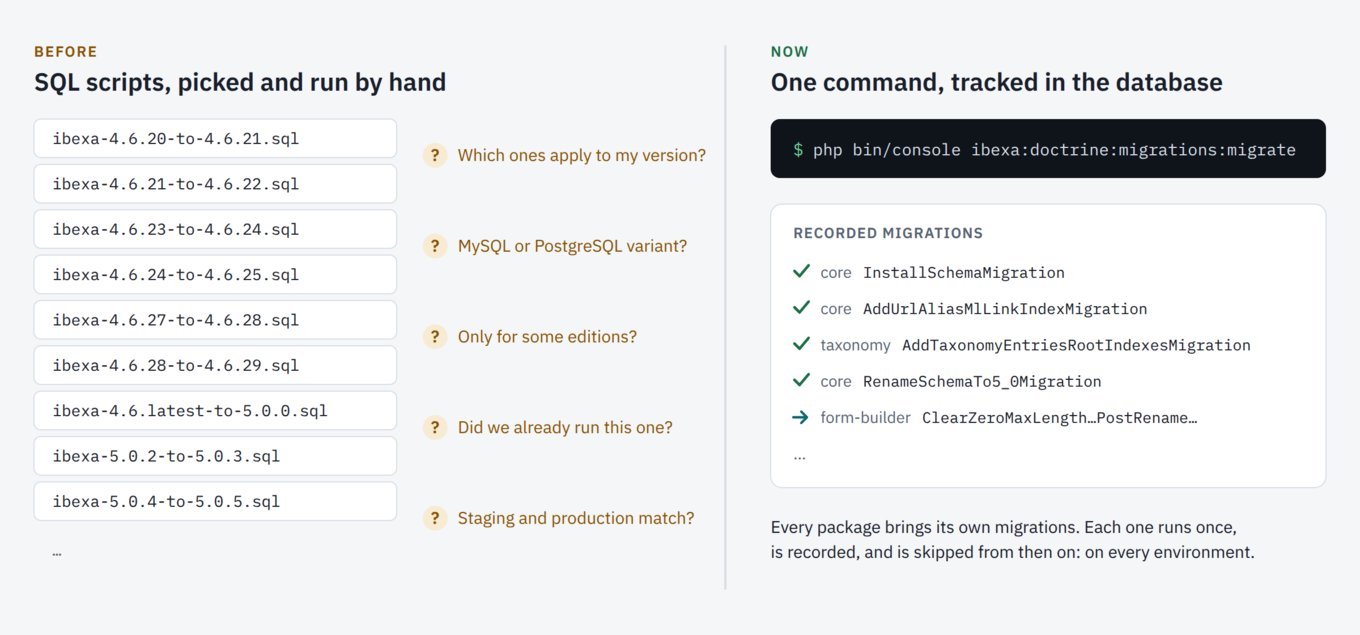
What changes: one command, and the database remembers
From v4.6.33 and v5.0.11, every Ibexa DXP package that owns database tables ships its schema and data changes as Doctrine Migrations. If you already manage your own tables that way, this will feel familiar. Nothing needs installing separately: the ibexa/doctrine-migrations package comes in as a dependency.
After updating your code, you run:
php bin/console ibexa:doctrine:migrations:migrate
The command works out which migrations your database hasn’t seen yet, applies them in the right order for your database engine (MySQL, MariaDB or PostgreSQL), and records each one as executed. The next time you run it, only the new ones run. Every environment keeps its own record, so development, staging and production each get exactly what they’re missing, and nothing they already have.
These migrations cover every SQL upgrade script previously listed in the v4.6 and v5.0 update guides. The one exception is a character set fix for the activity log tables, which only matters if your installation was originally upgraded from v4.5. The update guide covers it.
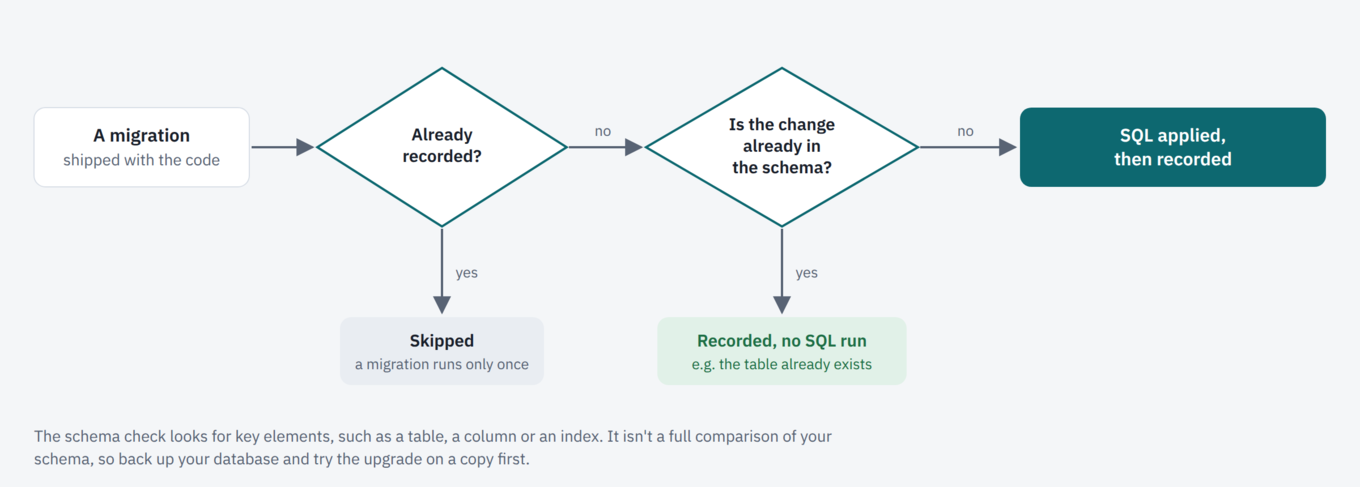
Migrations also check before they act. Our first plan was more modest: we would ship the migrations and leave it to you to work out which of them your database already had, and mark those as executed by hand. While building it, we realized each migration can safely make a few assumptions when it runs, and do that checking for you. If a change is already in your database, for example because you ran the matching SQL script by hand last year, the migration recognizes that, records itself as executed, and runs no SQL. That’s what makes the first run on an existing project safe: for most of it, it’s bookkeeping.
How each migration decides what to do: skipped if already recorded; recorded without running SQL if the change is already in the schema; otherwise, its SQL is applied and then recorded.
Doctrine Migrations only manage Ibexa DXP’s own tables. Your custom tables are left alone, and so are your own Doctrine migrations.
See it in action
Here’s a real v4.6 project, installed the classic way and never touched by migrations, upgraded to v5.0.
Step 1, still on v4.6. The first migrate finds the existing tables, records the migrations as executed, and applies only what the database was missing. Don’t let the wall of [warning] lines put you off: each one is a migration that found its change already in place and had nothing to do.
Step 1: the first migrate on a v4.6 project
Step 2, after updating the code to v5.0. The same database, now opened by the v5.0 code. We preview the changes, apply them, and run the command once more to show that nothing is left to do:
Step 2: previewing and applying the v5.0 migrations
The one rule: migrate before you move to the next major version
There’s one thing I’d like every reader to take away from this post. Before you upgrade to a new major version, run ibexa:doctrine:migrations:migrate at least once on the latest release of the version you’re on.
Here’s why. Once a migration has run, it’s recorded and never runs again. And each major version’s migrations check your database against that version’s own schema:
- On v4.6.33, the first migrate recognizes an existing v4.6 database. The tables are there, so the migrations record themselves as executed and only fill in what’s missing. From then on, your database has a starting point.
- The v5.0 migrations work from the v5.0 schema, and v5.0 renamed most tables. A v4.6 database that never ran migratehas no recorded starting point and none of the v5.0 table names, so to the v5.0 migrations it looks empty. They try to create tables that already exist, and stop with an error such as Table 'ibexa_setting' already exists.
So the order is: update to the latest v4.6 release, run migrate , update the code to v5.0, run migrate again. If you’re already on v5.0 and have never run migrate , the same applies before 6.0: run it once on v5.0.11 or later first.
The upgrade path: v4.6.x, then migrate on v4.6.33+, then migrate on v5.0.11+, then migrate on 6.0. Skipping the v4.6 migrate makes the v5.0 migrations fail.
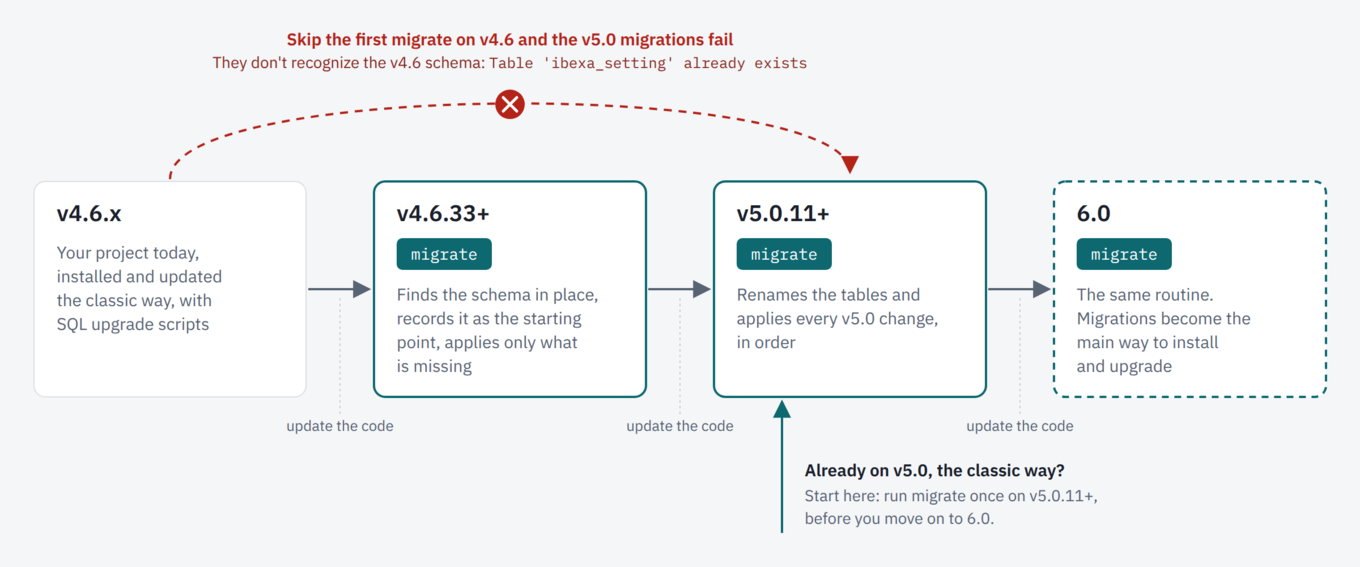
This is what skipping step 1 looks like. The command stops at the very first statement. Restore your backup, run migrate on the v4.6 code, and then upgrade:
Skipping step 1: the v5.0 migrations fail on a v4.6 database that never ran migrate
Starting a new project? Opt in from day one
For new installations, you can let Doctrine Migrations build the schema from the very beginning. Before you run ibexa:install, create config/packages/ibexa_installer.yaml:
ibexa:
    installer:
      doctrine_migrations:true
You get the same database as a classic installation, but with every migration already recorded, so your first upgrade is already a single command. On v4.6 and v5.0 this is opt-in, so existing installation pipelines keep working exactly as before.
A new v5.0 project installed with Doctrine Migrations enabled
Adding a package or moving to a higher edition
Once migrations could work out the state of your database on their own, we realized the same idea helps beyond upgrades. Take an optional package added to a project that’s already running, such as the Shopping list or Translations management LTS Updates, or the OAuth2 server. Until now, the installation guide for each of them gave you SQL to copy into your database client, one version for MySQL and one for PostgreSQL. From v5.0.11, you install the package with Composer, follow its configuration steps, and run:
php bin/console ibexa:doctrine:migrations:migrate
The package’s migrations create its tables, and its future schema changes reach you the same way as everyone else’s. It doesn’t matter how long the package was available before you added it: its migrations check your database first, for example whether your core tables already use the v5.0 names, and fit the new tables to what they find.
The same goes for moving to a higher edition, for example from Headless to Experience, or from Experience to Commerce. The new edition brings its packages, and every package brings its own migrations, so you no longer need to work out which tables and schema changes the switch requires. Running migrate creates whatever is missing. We tried it by switching an Experience project to Commerce, and the database ended up with exactly the schema of a fresh Commerce installation. Migrations take care of the schema only. The rest of the switch still follows its usual steps, including configuration and the content Commerce adds, such as its customer content type and the Storefront User role.
Keep in mind that migrate applies everything that’s pending in your project, not only what you just added. The same advice applies as for an upgrade: back up your database first.
Here’s the Shopping list LTS Update added to a v5.0 project that already runs on migrations:
Adding the Shopping list LTS Update to a v5.0 project that already runs on migrations
And here’s an Experience project switched to Commerce:
An Experience project switched to Commerce: migrate runs only the Commerce packages’ migrations
It’s still your database: a few words of caution
We’ve worked hard to make this smooth, and we tested every upgrade route we could think of on MySQL, MariaDB and PostgreSQL. But this is your data, and common sense still applies, especially during this transition period:
- Back up your database before every run.
- Try the upgrade on a copy first, such as a staging environment with a recent copy of production data.
- Preview, but don’t replay the preview. -dry-run --write-sql=var/migration-preview.sql writes the SQL a run would execute, so you can review it. Don’t run that file by hand: later migrations in the same run can depend on earlier ones, so the file may be incomplete. Apply changes with migrate itself.
- Customized core tables? The check before each migration looks for key elements, such as a table, a column or an index. It isn’t a full comparison of your schema. If you’ve changed an Ibexa DXP table yourself, a migration can fail. Read the error, align your schema with what the migration expects, and run migrate again. The update guide explains how to mark a migration as executed when you’ve applied its change another way.
- More than one repository? Run the command once per repository, with -siteaccess set to any SiteAccess of that repository.
- Prefer smaller steps? migrate next applies one migration at a time, and ibexa:doctrine:migrations:status shows what’s still pending.
- On Ibexa Cloud, connect with ibexa_cloud ssh and run the same command there.
Here’s migrate next on the v5.0 upgrade from earlier, one migration per run:
migrate next applies one migration per run
Where this is heading: 6.0
On v4.6 and v5.0, Doctrine Migrations already replace the SQL upgrade scripts, while new installations keep using the classic installer unless you opt in. In Cohesivo 6.0, migrations become the primary way to keep your database up to date. We also expect to make them the default for new installations, and possibly to retire the classic schema-based installer altogether.
That makes v4.6.33 and v5.0.11 the right moment to start. Every project that runs migrate today has a recorded starting point, and every later upgrade, 6.0 included, is the same single command.
Ready to try it?
Update to v4.6.33 or v5.0.11, back up your database, and follow the database update steps in the v4.6 update guide or the v5.0 update guide. Moving from v4.6 to v5.0? Start with Update to v5.0. Starting a new project? See Install Ibexa DXP.
If something doesn’t behave the way you expect, tell us through your partner or account team, or through support. Every upgrade route we hear about makes the next one smoother.